
You add online ordering to a restaurant website in two moves: choose the system that takes the orders, then connect it to your site with an "Order Online" button (a link) or, less often, an embedded widget. The button takes ten minutes on Wix, Squarespace, or WordPress. The system behind it is the decision that sets your costs for years, so it gets most of this guide.
Below: the four ways restaurants do this, what each costs based on published pricing, exact button and embed steps for the big website builders, and the mistakes that quietly lose orders.
What are the ways to add online ordering to a website?
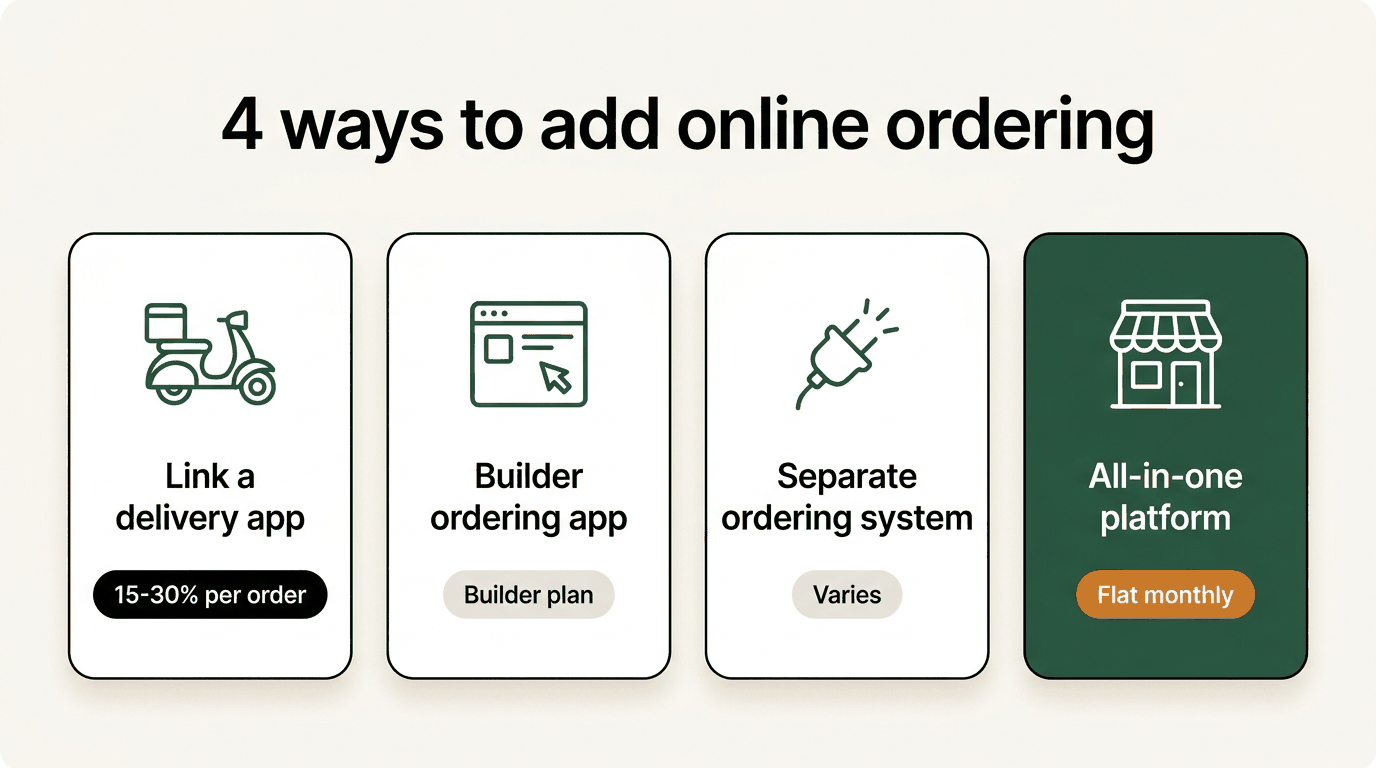
There are four real options. They differ in who processes the order, who keeps the customer data, and whether you pay a percentage.
| Option | How it works | What you pay | Who owns the customer |
|---|---|---|---|
| 1. Link to a delivery app | Your button opens your DoorDash, Uber Eats, or Grubhub listing | Marketplace commission (DoorDash: 15–30% delivery, 6% pickup) | Mostly the marketplace |
| 2. Your website builder's own ordering app | For example, Wix Restaurants Orders runs inside your Wix site | Your builder plan (Wix requires a plan that supports payments) plus card processing | You |
| 3. A separate ordering system, linked or embedded | A provider hosts your ordering page; your site links to it or embeds it | Varies by provider: processing only, a monthly fee, per-order fees, or a mix | Usually you, check the terms |
| 4. A restaurant platform with ordering built in | Your website and ordering are one system | Usually a flat monthly fee | You |
A few notes on each, based on pages we checked in September 2026.
Option 1 is the fastest and the most expensive per order. DoorDash's published pricing is 15%, 25%, or 30% on delivery depending on plan. Sending your own website visitors there means paying marketplace rates on people who already found you. Our DoorDash commission rates page runs the math by plan.
Option 2 works if you're already on Wix. Wix's help center says you add the Wix Restaurants Orders app from the app market, set up menus in the Wix Restaurants Menus app, and upgrade to a plan that supports payments to take orders online.
Option 3 covers most standalone ordering providers. One worth knowing: DoorDash's own Online Ordering product, which DoorDash says is commission-free for orders on your website, charges a standard payment processing fee, has customers pay delivery fees, and requires an active DoorDash store.
Option 4 is the "stop duct-taping" path: one system for your website, menu, and ordering. Menuline is in this category, and we'll be specific about it below.
Which option should you choose?
Answer three questions:
- Do you have repeat customers? If yes, anything with a per-order percentage gets more expensive every time a regular reorders. Flat pricing wins as volume grows. What Is Commission-Free Online Ordering? shows the break-even math.
- Is your current website any good? If it's fast, easy to edit, and shows a real text menu, keep it and add a button (options 2 or 3). If it's slow, outdated, or your menu is a PDF, replacing it with option 4 fixes ordering and search visibility together.
- Who handles delivery? If you need couriers dispatched for you, check what each system supports and who pays the delivery fee. DoorDash, for example, sells courier-only delivery through Drive On-Demand at $6.99 to $10.99 per delivery order, per its Drive pricing.
Should you link to your ordering page or embed it?
Most ordering systems give you a link to your ordering page. Many also offer embed code: a snippet that shows the menu inside your own page.
| Link (button) | Embed (iframe or script) | |
|---|---|---|
| Works on every builder plan | Yes | No: Squarespace and WordPress.com restrict iframes and scripts to paid plans |
| Mobile experience | Full-screen ordering page | Can feel cramped inside a page frame |
| Visitor stays on your domain | Only if the ordering page uses your domain | Yes |
| Setup time | About 10 minutes | Longer, plus testing on real phones |
| What breaks | Almost nothing | Height, scrolling, and checkout inside frames |
Our recommendation: link first. A clear "Order Online" button to a full ordering page is the most reliable setup on phones, which is where most restaurant ordering happens. Embed only if your provider recommends it and you've tested checkout on an iPhone and an Android phone.
How do you add an Order Online button, step by step?
The general steps are the same everywhere:
- Get your ordering URL from your ordering system. It should open the ordering page directly, not a homepage.
- Add a button in your site header (the top navigation that appears on every page). Label it "Order Online" or "Order Now."
- Add a second button above the fold on your homepage, near your hero photo.
- Link both to your ordering URL.
- Publish, then test on your phone. Tap the button, add an item, and go to checkout.
Here's how that looks on each builder.
Wix
Per Wix's help center on adding a link to a button:
- In the Wix Editor, add a button (or select an existing one).
- Click the Link icon.
- Choose Web Address and paste your ordering URL.
- Pick whether it opens in the same window or a new one. For ordering, the same window is usually smoother on phones.
- Click Done, then test the link in Preview before publishing.
If you'd rather order through Wix itself, add the Wix Restaurants Orders app instead, following Wix's setup guide.
Squarespace
Squarespace uses blocks:
- Edit the page and click Add block (or +).
- Choose Button, then click the pencil icon to edit it.
- Type "Order Online," click Attach Link, and paste your ordering URL under URL. Save. Squarespace's button blocks page covers the style options.
- Add the same link to your site navigation so it's reachable from every page, not just the homepage.
- For an embed, add a Code block and paste the provider's snippet. Per Squarespace's code blocks page, JavaScript and iframes in code blocks are available on the Core, Plus, Advanced, Business, Commerce Basic, and Commerce Advanced plans.
WordPress
In the WordPress block editor:
- Click + and add a Buttons block. WordPress's Buttons block documentation covers linking and styling.
- Type "Order Online" as the button text.
- Select the button and use its Link control to paste your ordering URL (WordPress also lets you open it in a new tab; for ordering, the same tab is usually smoother on phones).
- Add the same link to your main navigation menu so it appears site-wide.
- For an embed, add a Custom HTML block and paste the provider's code. On WordPress.com specifically, the Custom HTML block guide says tags like iframe and script need a paid plan with hosting features activated. Self-hosted WordPress.org sites generally let administrators add this code.
What mistakes lose online orders?
Even a well-chosen system underperforms when it's wired up badly. The common ones:
- The button is hidden. If a visitor on a phone has to scroll to find "Order," some won't. Put it in the header and on the first screen.
- The link goes to a homepage, not the menu. Every extra tap between "I'm hungry" and the cart costs orders.
- Different buttons go to different places. One button to your ordering page and another to a delivery app splits your customers and your data. Pick one primary destination.
- The menu is a PDF. PDFs are painful on phones and weak for search. A real text menu on your site helps both ordering and Google. See the restaurant SEO guide.
- Nobody placed a test order. Place a real one from your phone after setup, and again after any menu change.
- The link lives only on your website. Your website is one doorway. Google and Instagram are the others.
Where else should your ordering link go?
Once you have one ordering URL, use it everywhere people look for you:
- Your Google Business Profile. Set it as the preferred ordering link so Google's order button doesn't route your customers to a delivery app. The walkthrough is in How to Add Online Ordering to Google.
- Instagram and Facebook bios, and link stickers in Stories.
- Receipts, bag inserts, and a QR code by the register. The free QR code menu generator makes a print-ready code.
More ways to grow order volume once the link is live: How to Get More Online Orders.
Where does Menuline fit?
Menuline is option 4: a restaurant website with commission-free online ordering built in. We'll be precise about what that means.
- Your ordering page has its own URL. Menuline sites run on your own domain (or a Menuline subdomain), and the ordering page lives at a path like
/menu. Two live examples from real Menuline restaurants: timtimsgrill.com/menu and thehalalburgerchicago.com/menu. - Use it as your whole website, or just for ordering. If you like your current site, keep it and point its Order Online button at your Menuline ordering page using the steps above. An outside site connects to Menuline ordering through a link, not an embed.
- Pricing: $29/month (Starter) or $99/month (Growth), both $1/month for the first 3 months, month-to-month with no long-term contract.
- Fees, stated plainly: 0% commission to the restaurant on every plan. Diners pay a 5% platform fee at checkout, and standard card processing applies to online payments.
- Switching: Menuline handles the switch with a dedicated specialist.
- Growth plan extras: a branded iOS and Android app and AI email marketing.
See pricing for plan details.
The bottom line
Adding online ordering to a website is easy. Choosing what powers it is the real decision. A delivery-app link costs a percentage of every order, including repeat customers who found you on their own. A builder app or separate ordering system can work if you're happy with your current site. An all-in-one platform makes sense when the website itself needs fixing too.
Whatever you pick, use one ordering link, put it in your header and homepage, test it on a phone, and then put the same link on Google and Instagram. If you want a quick read on how your current site and ordering setup score, the free Menuline AI grader checks it in about a minute.