To add online ordering to Google, open your Google Business Profile, go to Food ordering, select Add a link, paste the URL of your ordering page, and then mark that link as preferred for pickup and delivery. That's the whole mechanism. The part most owners miss is what happens if you skip it: Google fills the gap with delivery apps that say they work with you, and those apps charge commission on customers who were searching for your restaurant by name.
This guide walks through every step using Google's own help pages as of September 2026, shows you how to get unwanted providers off your listing, and covers the fixes when a link won't show up.
What does Google's "Order online" button actually do?
When someone searches your restaurant on Google Search or Maps, your Business Profile can show ordering options. Per Google's Manage online ordering options page, in some countries these appear under an "Order online" button, and in others as separate "Place an order" links.
Behind that button is a list of providers. Two kinds of links can end up there:
- Links you add. Google calls these custom links. They send customers "to other web pages where they can place orders from your business."
- Links added by third-party providers. Google says providers "who state they have authorized relationships with your business are automatically listed on your profile." If you're on DoorDash, Uber Eats, or Grubhub, their links can appear without you doing anything.
The customer doesn't check out on Google. Per Google's food ordering help page, diners are redirected to the provider's website to browse the menu and complete the order. So whichever link sits at the top decides who takes the order, who gets paid, and who keeps the customer's contact details.
Why does it matter which link is first?
Because the people tapping that button are already your customers. They typed your name into Google. The discovery work is done.
Here's what routing them through a marketplace costs. DoorDash's published pricing (checked September 2026) charges 15%, 25%, or 30% on delivery orders depending on plan, and 6% on pickup. Say Google sends you 20 delivery orders a week at a $30 average, and your DoorDash plan is Plus at 25%:
| Per week | Per year | |
|---|---|---|
| Orders via Google | 20 | 1,040 |
| Order value | $600 | $31,200 |
| DoorDash Plus commission (25%) | $150 | $7,800 |
That's $7,800 a year paid on customers who came looking for you. Point the same button at your own ordering page and that commission line goes away. You pay your ordering system's price instead, which is usually a flat monthly fee. (The full fee picture is in our DoorDash fees breakdown.)
What do you need before you start?
Three things:
- A verified Google Business Profile that you manage. If you haven't claimed it yet, do that first. Our Google Business Profile guide covers claiming and verification.
- The Google account that owns or manages the profile. Sign in with it before searching for your restaurant, or the editing controls won't appear.
- A direct link to your ordering page. Not your homepage. The link should open the page where a customer can start adding items to a cart. Google's developer rules for ordering providers require action links to "point to merchant-specific pages where the user performs an action," and that's a good standard for your own link too.
If you don't have a direct ordering page yet, that's the real first step. The last section of this guide compares the options, and What Is Commission-Free Online Ordering? explains how the flat-fee model works.
How do you add your ordering link to Google, step by step?
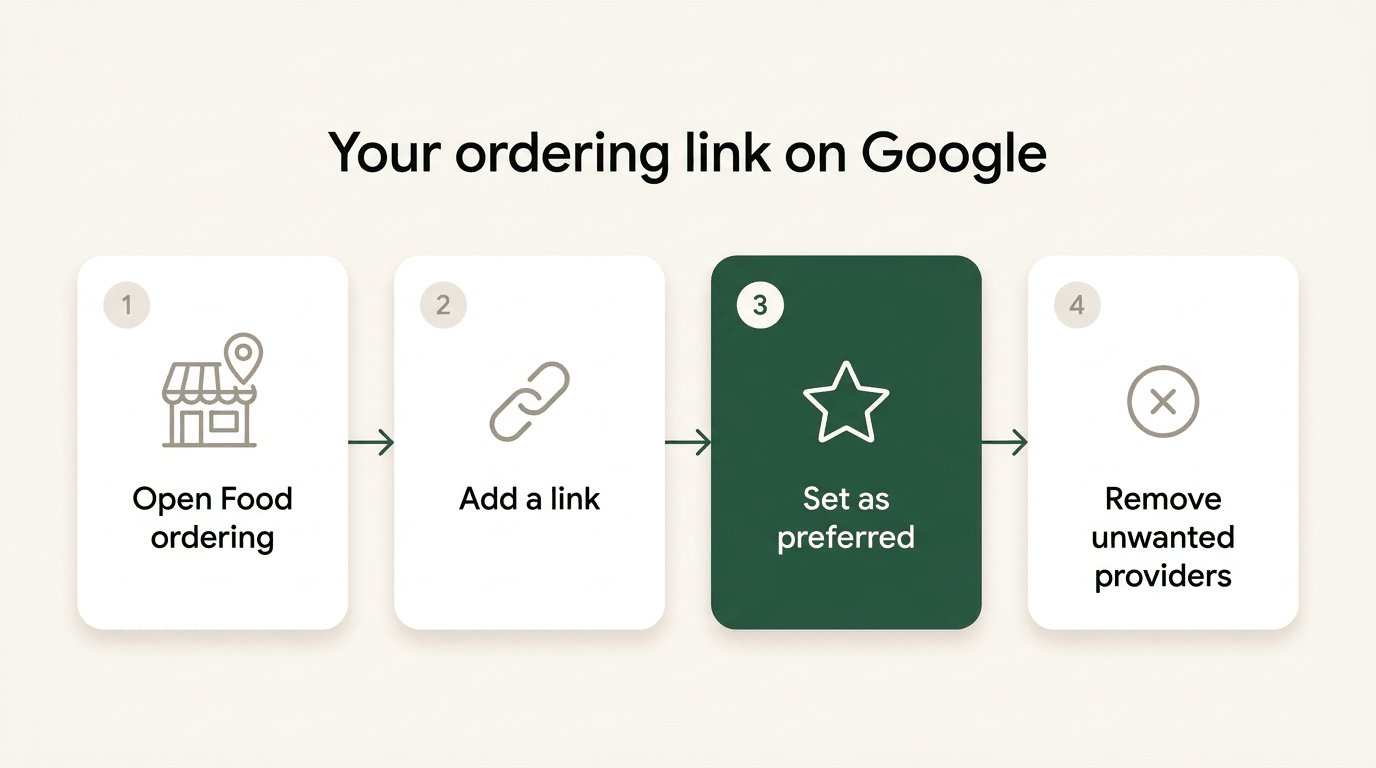
These steps follow Google's Manage your local business links and Manage online ordering options help pages.
Step 1: Open your Business Profile. Sign in, then search your restaurant's name on Google Search, or open it in Google Maps. On Search, your profile's editing panel appears at the top of the results.
Step 2: Go to the ordering section.
- On Google Search, select Food ordering (Google also lists "Pickup and delivery" as a transaction type for some businesses).
- On Google Maps, select Edit profile, then choose the ordering transaction type.
Step 3: Turn ordering on. Make sure Accept orders on your profile is switched on. Google is explicit that turning it off hides all ordering options and links, both yours and third-party ones.
Step 4: Add your link. Select Add link (or Add another link if some already exist). Paste your ordering page URL and select Save. Google allows up to 10 links per category, including "Place a food order."
Step 5: Make your link the preferred option. From the list, select your link, then Set as preferred. Turn on Preferred for pickup and Preferred for delivery if you offer both, then Save. Google notes you can't turn on pickup or delivery for a provider that doesn't offer it.
Step 6: Check it as a customer would. Sign out (or use a private browser window) and search your restaurant on a phone. Tap the ordering button and confirm your link appears where you expect and opens your ordering page.
One more thing Google calls out: local business links can't be managed through the Business Profile API or a spreadsheet upload. If a marketing agency manages your listings in bulk, this specific setting still needs to be done in the profile itself.
How do you remove DoorDash or other delivery apps from Google?
If you've left a marketplace, or you just don't want it competing with your own link, remove it:
- Open your Business Profile and select Food ordering.
- Select the provider or link you want gone.
- Select Remove link.
Google's rule: "providers must remove third-party links from a profile within 5 business days" once you make the request. If a provider doesn't, Google's help page links to a form to report a violation.
Should you remove marketplace links you're still using? Not necessarily. A reasonable middle ground is to keep them listed but make your own link the preferred one for both pickup and delivery. Customers who prefer their DoorDash account can still use it, and everyone else lands on your page first.
What about the menu link?
Separate from ordering, Google lets you add a single "Check a menu" link. Point it at a real, text-based menu page on your site (ideally the same page where people order). It gives hungry browsers one more path into your ordering flow, and a crawlable menu helps you show up for dish searches. The restaurant SEO guide explains why an HTML menu beats a PDF.
Why isn't my ordering link showing on Google?
Work through these in order:
- The edit is still under review. Per Google's help page on profile edits, edits "usually take up to 10 minutes to review, but sometimes it can take up to 30 days."
- Ordering is switched off. If Accept orders on your profile is off, every ordering link is hidden. Check it first.
- Your region shows links differently. In some regions, your links appear as "Place an order" links rather than inside an "Order online" button. Look for both before assuming something is broken.
- Another link is preferred. If a third-party provider is marked preferred, your link may sit lower in the list. Set yours as preferred for pickup and delivery.
- The link is broken or points somewhere odd. Open it on a phone. If it lands on a homepage, a PDF, or an error, fix the URL.
- You're signed in as the wrong account. Editing controls only appear for owners and managers of the verified profile.
How can you tell if Google orders are coming through?
Add tracking parameters to the link you paste into Google, for example:
https://yourrestaurant.com/menu?utm_source=google&utm_medium=organic&utm_campaign=gbp_order
If your ordering site runs Google Analytics, orders from that link will show up under that source and campaign. Compare it month to month. It's usually one of the highest-converting links a restaurant has, because the people clicking it already chose you.
Which ordering system should the link point to?
Google doesn't care which system you use. The choice is about cost and who owns the customer. The common options:
| Where the link goes | What you pay (published, 2026) | Who gets the customer's details |
|---|---|---|
| DoorDash marketplace listing | 15–30% on delivery, 6% on pickup, per DoorDash's pricing page | Mostly DoorDash |
| DoorDash's own Online Ordering product | 0% commission plus a standard payment processing fee; customers pay delivery fees, per DoorDash | Needs an active DoorDash store |
| Your own direct ordering page (for example, Menuline) | A flat monthly fee | You |
The DoorDash Online Ordering option is worth knowing about. DoorDash's product page says it can be added to your website and Google profile commission-free, with only payment processing charged, and that it's available to restaurants with an active DoorDash store. If you already live on DoorDash, that's a legitimate choice.
Here's where Menuline fits, stated plainly. Every Menuline restaurant gets a website with commission-free ordering built in, and the ordering page has its own address (for example, timtimsgrill.com/menu or thehalalburgerchicago.com/menu). That URL is what you paste into Google's Food ordering section. Menuline isn't one of the providers Google lists automatically, so you add the link yourself using the steps above. It takes a few minutes.
The pricing: $29/month (Starter) or $99/month (Growth), both $1/month for the first 3 months, month-to-month. 0% commission to the restaurant on every plan. Diners pay a 5% platform fee at checkout, so it isn't free for the customer; it's just that the percentage no longer comes out of your side. See pricing, and if you're switching from another system, Menuline handles the switch with a dedicated specialist.
The bottom line
Adding online ordering to Google is a five-minute job: Food ordering, Add a link, Set as preferred. The payoff is outsized because the people tapping that button already picked you. If you do nothing, delivery apps can occupy that spot and charge you 15–30% for the privilege.
Not sure what your listing shows right now? Run the free Menuline AI grader. It checks your website, Google presence, and ordering setup in about a minute and tells you what to fix first.